DDL(Data Definition Language)
DML(Data Manipulation Language)
DCL(Data Control Language)
** DB 구축 설계 **

[root@localhost ~] sysctl -w vm.swappiness=40

## 또는  vi /etc/sysconf.conf 에서 vm.swappiness=40 이라고 선언해도 됌

[root@localhost ~] cat /proc/meminfo
MemTotal: 1814292 kB
MemFree: 762228 kB
MemAvailable: 898452 kB
Buffers: 2708 kB
Cached: 248296 kB
SwapCached: 0 kB
Active: 734484 kB
..
..

[root@localhost ~] cat /etc/issue
\S
Kernel \r on \m

[root@localhost ~] cat /proc/cpuinfo processor : 0
vendor_id : GenuineIntel
cpu family : 6 model : 158
model name : Intel(R) Core(TM) i7-8700
CPU @ 3.20GHz
stepping : 10 microcode : 0xb4
..
..

[root@localhost ~] vi /etc/my.cnf

[root@localhost ~] ls /etc/my.cnf.d
auth_gssapi.cnf
client.cnf
enable_encryption.preset
mariadb-server.cnf
mysql-clients.cnf
spider.cnf

[root@localhost my.cnf.d] vi mariadb-server.cnf
# n37 line
# bind-address=0.0.0.0 모든 ip에서 접속허용(원격접속허용)
# bind-address=127.0.0.1 로컬 ip에서만 접속허용
# 특정ip 또는 특정 대역대에서만 사용가능하도록 설정 가능
# apt install mariadb-server
# systemctl enable --now mariadb
# mysql -u root -p

@MariaDB

MariaDB [(none)]> create database testdb;

MariaDB [(none)]> create user 'testuser'@'localhost' identified by '123456';

MariaDB [(none)]> grant all privileges on testdb.* to 'testuser'@'localhost';
## grant<->revoke

MariaDB [(none)]> flush privileges;

MariaDB [(none)]> create database test2db;

MariaDB [(none)]> create user 'test2user'@'%' identified by '123456';

MariaDB [(none)]> grant create, select on test2db.student to 'test2user'@'%';
PMM
ljm@ljm:~$ sudo apt update -y

ljm@ljm:~$ sudo apt install -y ca-certificates curl gnupg

ljm@ljm:~$ ls /etc/apt
apt.conf.d keyrings preferences.d.save sources.list.d auth.conf.d preferences.d sources.list trusted.gpg.d

ljm@ljm:~$ sudo install -m 0755 -d /etc/apt/keyrings

ljm@ljm:~$ sudo curl -fsSL https://download.docker.com/linux/ubuntu/gpg | sudo gpg --dearmor -o /etc/apt/keyrings/docker.gpg

ljm@ljm:~$ ls /etc/apt/keyrings docker.gpg

ljm@ljm:~$ echo "deb [arch="$(dpkg --print-architecture)" signed-by=/etc/apt/keyrings/docker.gpg] https://download.docker.com/linux/ubuntu "$(. /etc/os-release && echo "$VERSION_CODENAME")" stable" | sudo tee /etc/apt/sources.list.d/docker.list > /dev/null

ljm@ljm:~$ sudo apt update

ljm@ljm:~$ sudo apt install -y docker-ce docker-ce-cli containerd.io docker-buildx-plugin docker-compose-plugin

ljm@ljm:~$ sudo systemctl status docker

ljm@ljm:~$ sudo docker images
REPOSITORY TAG IMAGE ID CREATED SIZE

ljm@ljm:~$ sudo docker ps -a

ljm@ljm:~$ sudo docker run hello-world
Unable to find image 'hello-world:latest' locally
latest: Pulling from library/hello-world 17eec7bbc9d7: Pull complete
Digest: sha256:a0dfb02aac212703bfcb339d77d47ec32c8706ff250850ecc0e19c8737b18567
Status: Downloaded newer image for hello-world:latest
Hello from Docker!
This message shows that your installation appears to be working correctly.
..
..

ljm@ljm:~$ sudo docker images
REPOSITORY TAG IMAGE ID CREATED SIZE hello-world latest 1b44b5a3e06a 3 weeks ago 10.1kB

ljm@ljm:~$ sudo docker ps -a
CONTAINER ID IMAGE COMMAND CREATED STATUS PORTS NAMES 2cab2a445d46 hello-world "/hello" 2 minutes ago Exited (0) 2 minutes ago modest_turing

ljm@ljm:~$ sudo docker run -it ubuntu:bionic bash

# root@8f5e19521ab2:/# (컨테이너의 ID)

ljm@ljm:~$ sudo apt update -y

ljm@ljm:~$ sudo apt install -y git

ljm@ljm:~$ exit

ljm@ljm:~$ sudo docker ps -a
CONTAINER ID IMAGE COMMAND CREATED STATUS PORTS NAMES
8f5e19521ab2 ubuntu:bionic "bash" 8 minutes ago Exited (0) 8 seconds ago angry_yalow
2cab2a445d46 hello-world "/hello" 15 minutes ago Exited (0) 15 minutes ago modest_turing

ljm@ljm:~$ sudo docker commit 8f5e19521ab2 ubuntu:git sha256:37fec4b6a4756d620e128c1d21071c6fb356c8ea0e758a2b08d446d10b18da34
ljm@ljm:~$ sudo docker images
REPOSITORY TAG IMAGE ID CREATED SIZE
ubuntu git 37fec4b6a475 10 seconds ago 203MB
hello-world latest 1b44b5a3e06a 3 weeks ago 10.1kB
ubuntu bionic f9a80a55f492 2 years ago 63.2MB

root@b3a72584ba8c:/ git --version
git version 2.17.1

ljm@ljm:~$ sudo docker rm b3a72584ba8c
ljm@ljm:~$ sudo docker rmi ubuntu:bionic


** pmm **

ljm@ljm:~$ sudo curl -fsSL https://www.percona.com/get/pmm | sudo /bin/bash
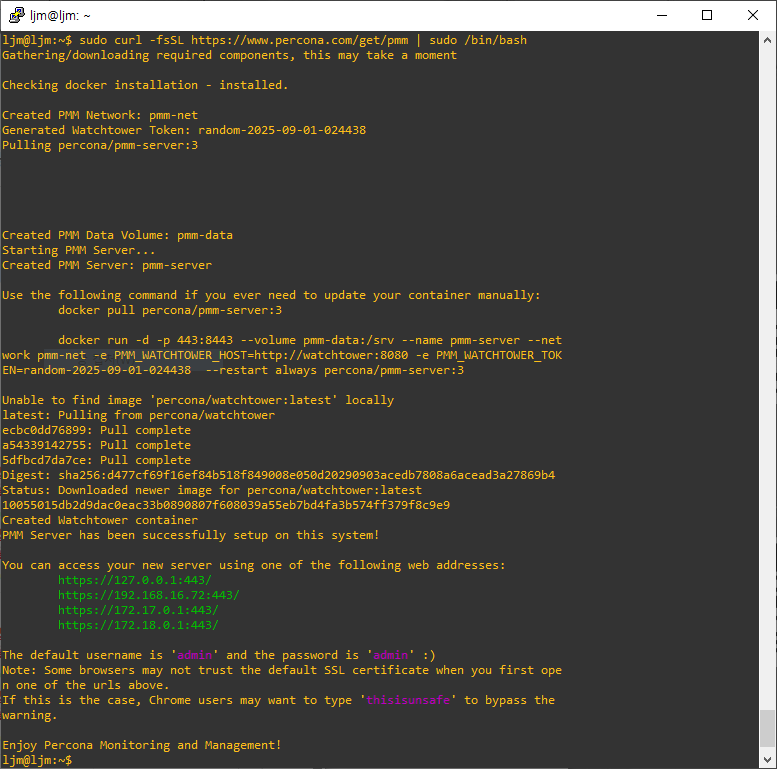
# 192.168.16.?/graph 사이트 접속하기

@ pmm.client

wget https://repo.percona.com/apt/percona-release_latest.generic_all.deb

sudo dpkg -i percona-release_latest.generic_all.deb

sudo percona-release enable pmm3-client

sudo percona-release start pmm3-client


sudo apt update
sudo apt install -y pmm-client

sudo pmm-admin config --server-insecure-tls --server-url=https://admin:admin@192.168.16.클라이언트
sudo pmm-admin status

@ pmm.server

sudo systemctl enable --now mariadb

mysql -u root -p

create user 'pmm'@'localhost' identified by '123456' with max_user_connections 10;

grant select, process, replication client, reload on *.* to 'pmm'@'localhost';

@ pmm.client

sudo pmm-admin add mysql --username=pmm --password=123456 --host=localhost --port=3306 --query-source=slowlog --environment=production MySQL-Primary

sudo firewall-cmd --permanent --add-service=mysql
sudo firewall-cmd --reload